
Search the selected server
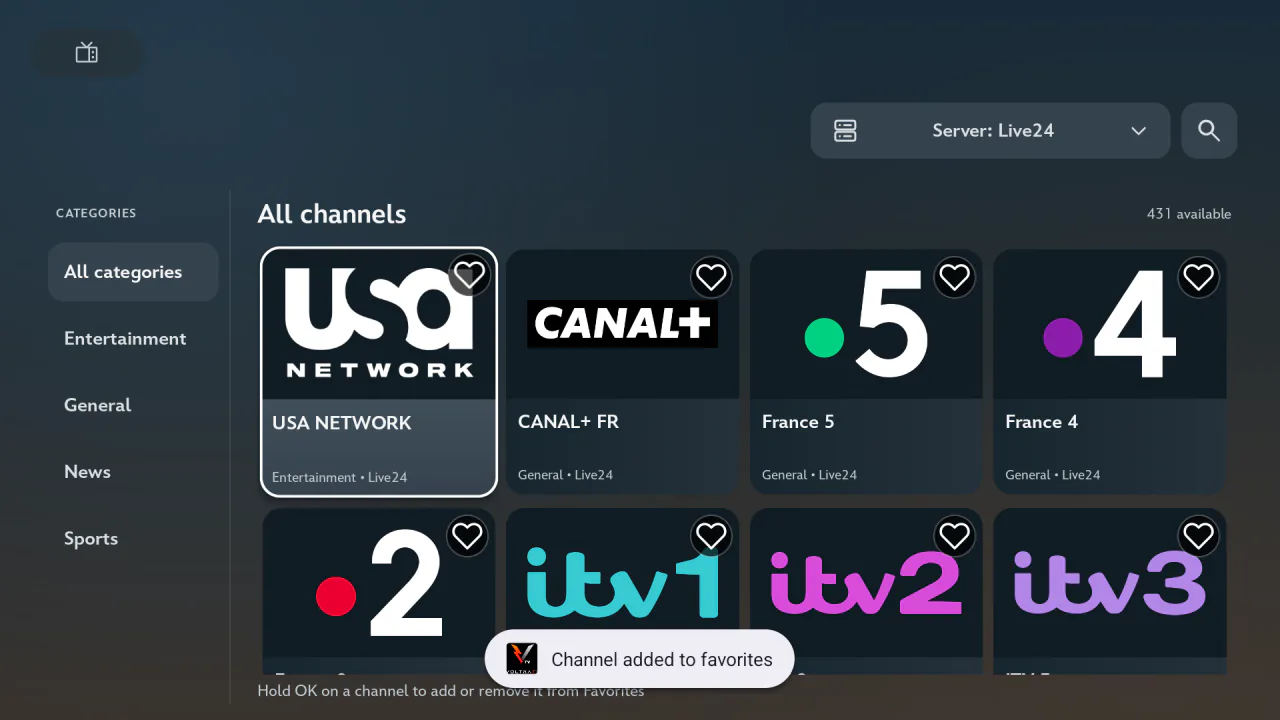
- Open Channels and check the current server. If you already know which source carries the station, select it before opening the magnifying glass.
- Type part of the channel name. On TV, use the remote with the on-screen keyboard. On mobile, tap the search field and use the phone or tablet keyboard.
- Choose a result to open the station. On TV, you can use the keyboard’s submit action to jump to the first result. Scroll through the grid if several stations share a name.
Results update as you type. The search matches text anywhere in the station’s name or its provider-supplied code, ignoring capital letters. For example, typing news can find that word at either end of a station name. If a search for a long name comes back empty, delete the regional suffix or punctuation and try the distinctive part on its own.
Why the search screen can look empty
With an empty query, the screen shows a search prompt. No channels found means the current catalog loaded, but no name or code matched what you typed. Shorten your search first. To check a different catalog, go back to Channels, switch the server, then reopen Search and enter the same term.
If Voltra says it couldn’t load channels, changing the spelling won’t change the outcome. Return to Channels and retry the source, or choose another one. If several sources are unavailable, open Connection check in Settings to see whether the device has internet access.
Save the working entry
If two servers carry the same station, try the listing you intend to use before saving it. Hold OK on its card with the remote or tap its favorite icon on mobile. It will appear in the Channels tab of My List with its original server.