
Save a movie, series or anime
Open the title’s detail page and select My List. The plus changes to a check mark and Voltra shows “Added to My List.” You can save a series before choosing a season or playing an episode. To remove it, open the same title and select the checked button. The label still reads My List, so use the icon to tell which action you’re about to take.
Save a live channel with the remote or touchscreen
In Channels, highlight the station and hold the remote’s OK button until you see the favorites confirmation. A short press starts playback. On a phone or tablet, tap the favorite icon on the channel card, or press and hold the card. You can also use these actions on a result in channel search.
Find a saved item again
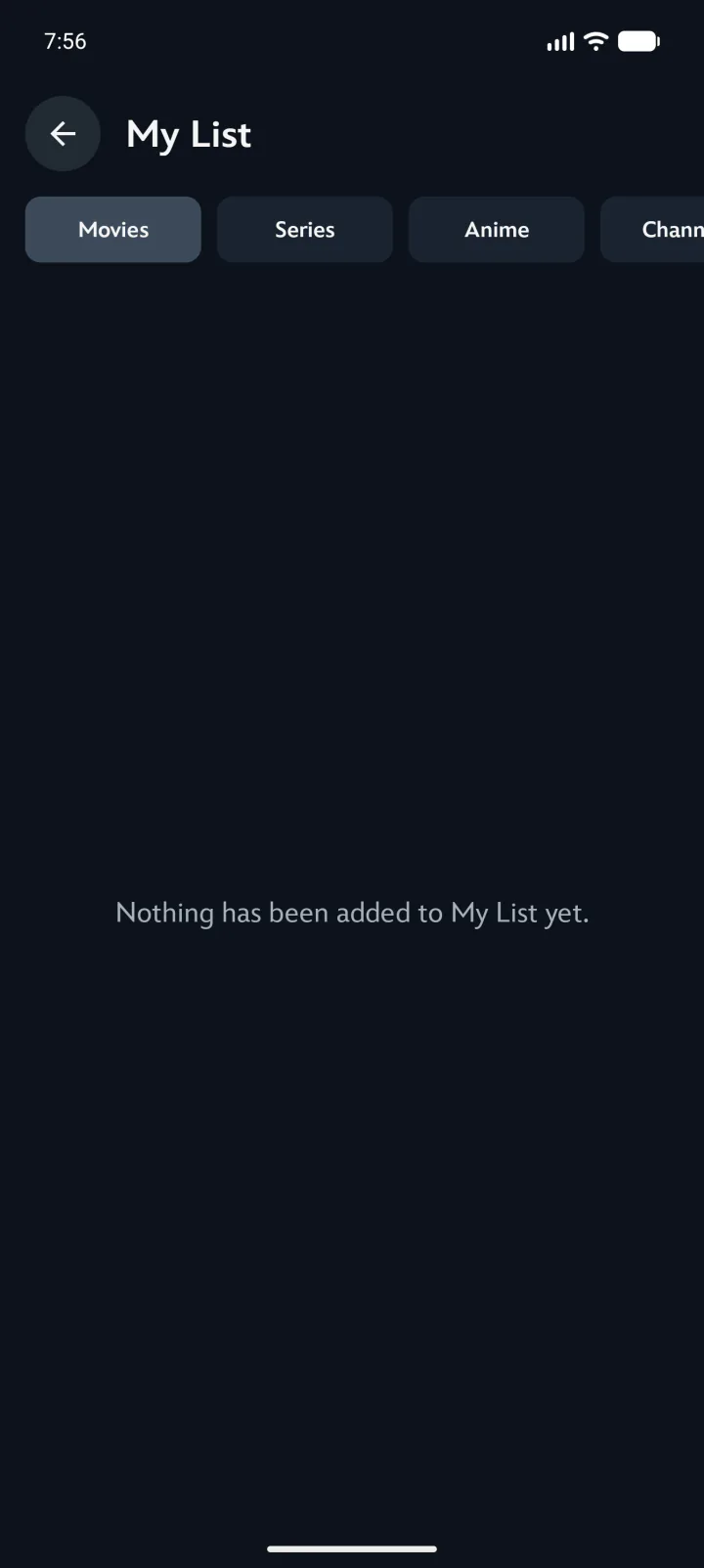
On TV, open the side menu and choose My List. On mobile, open Settings using the gear and select My List. Choose Movies, Series, Anime or Channels. A saved film opens its details. A saved channel opens the station. To remove a channel from this view, use its favorite icon or hold OK on its card.
For example, a show saved from the Anime catalog appears under Anime, even if it has several seasons. If you want to resume an episode you already started, look for Continue Watching on Home. That shelf follows playback progress, while My List follows what you save.
Why did a favorite channel disappear?
A channel favorite includes its original server. My List displays channels from supported, enabled servers. If a station goes missing while your films are still there, search its name on another available channel server and save the working entry. Two stations with the same name can point to different sources.