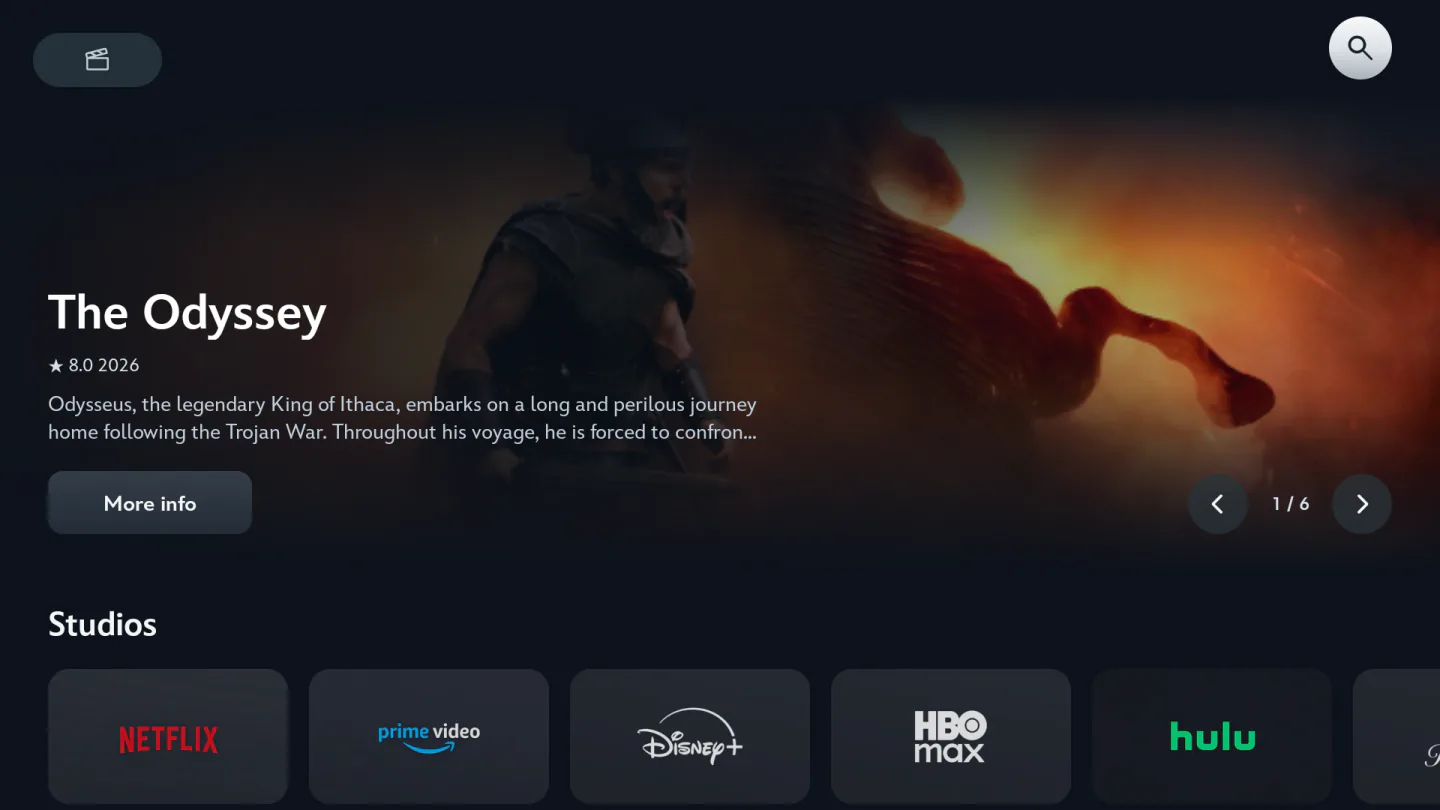
Studios and search
Open a studio from Movies, then pick Movies or Series. Search is quicker when you know the title; studio browsing is useful when you remember the distributor instead.
Browse studios and searchVoltra TV · Build 14
Explore the screens you’ll use to browse a studio, catch a game, save a channel and adjust playback. The TV edition is built for a remote. The mobile edition uses touch and a landscape player.
Choose your download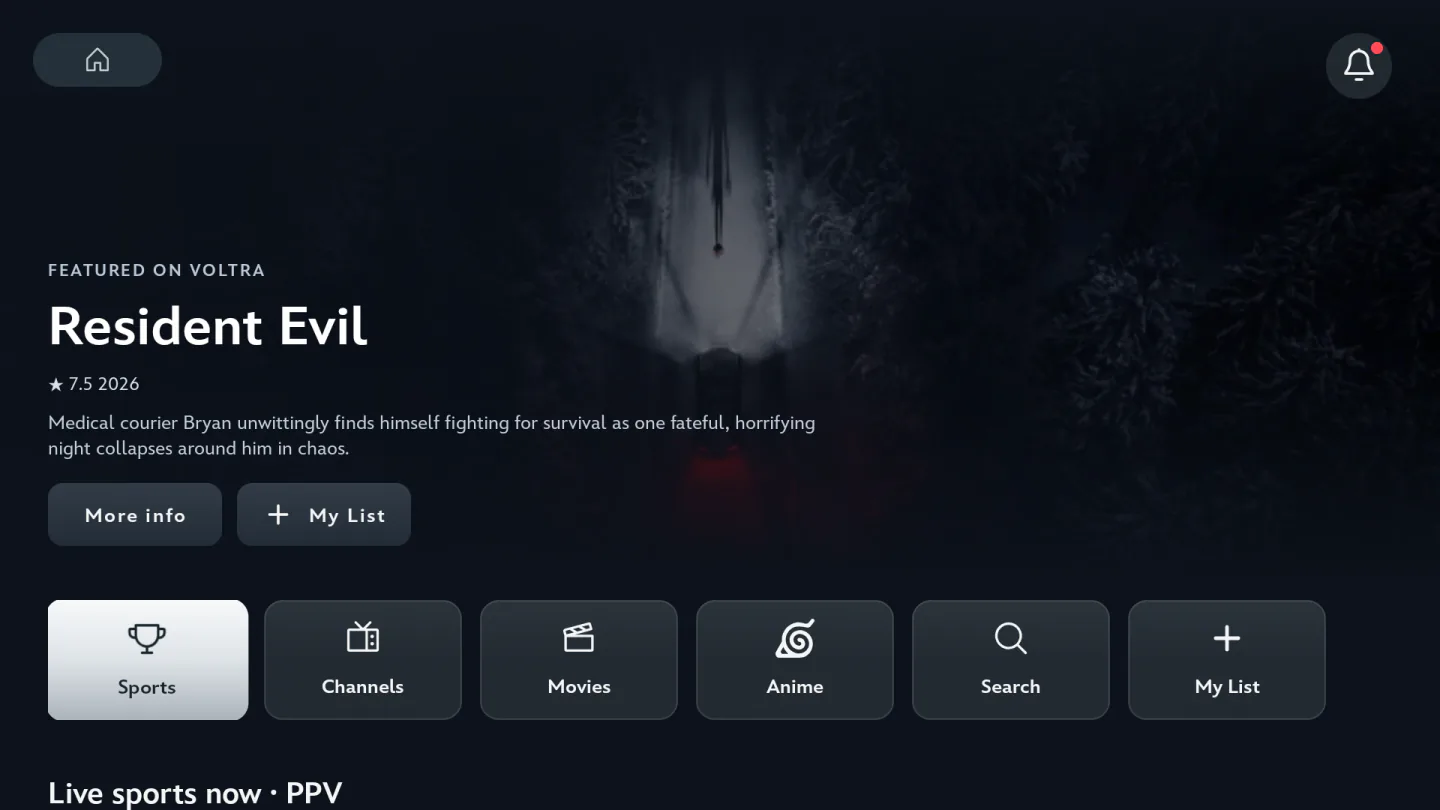
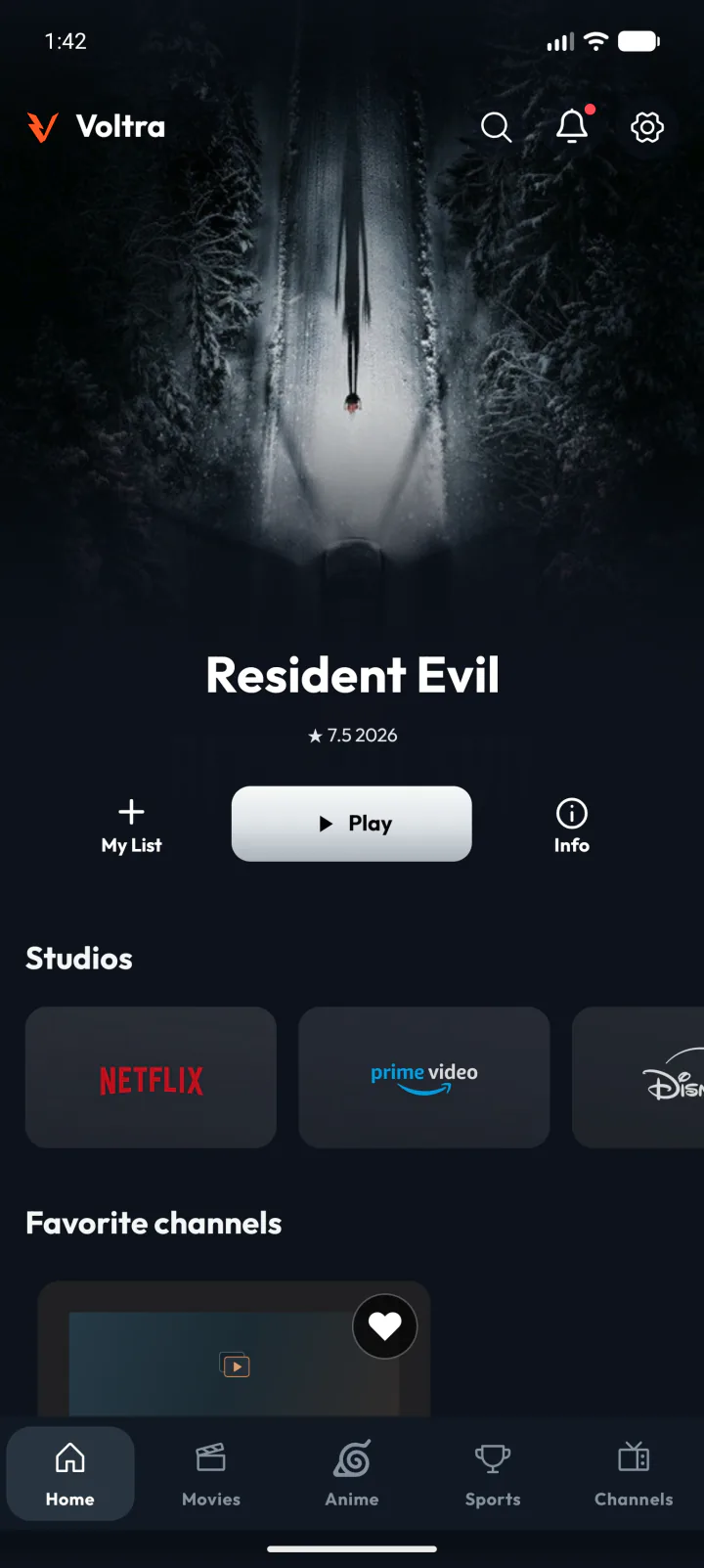
Start from a title you know or use the shelves to find something new.
Open a studio from Movies, then pick Movies or Series. Search is quicker when you know the title; studio browsing is useful when you remember the distributor instead.
Browse studios and search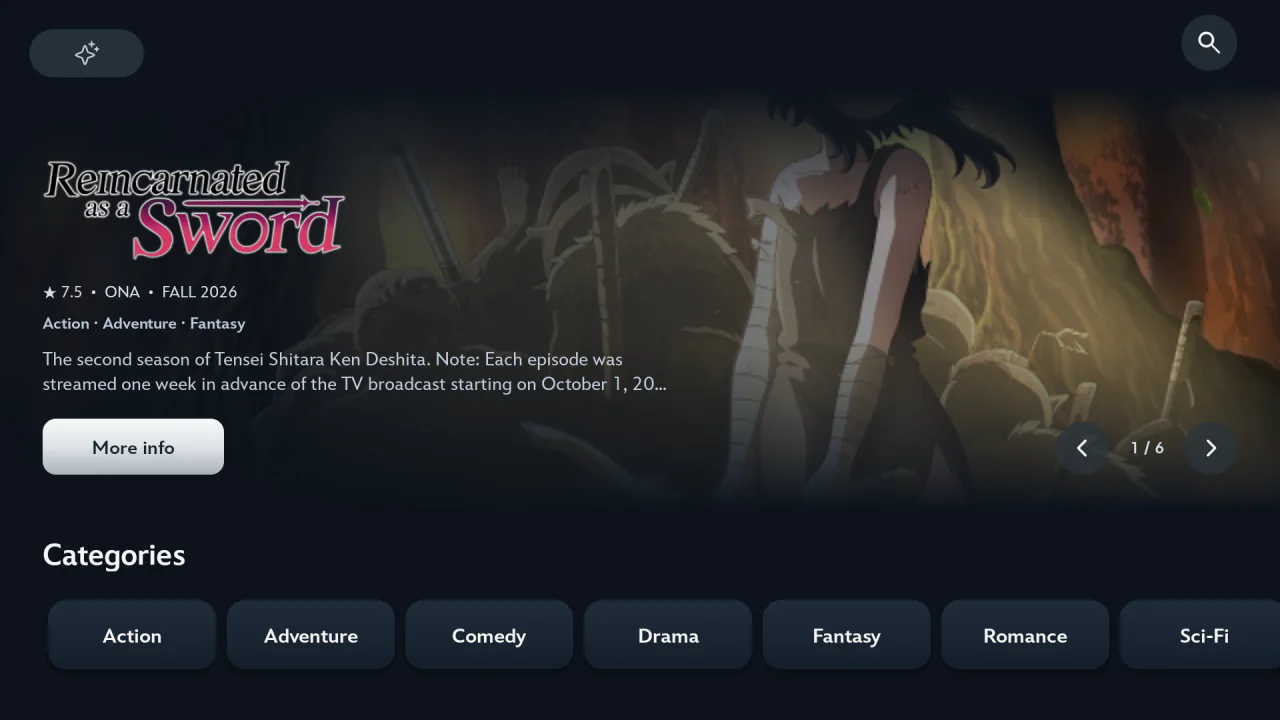
Anime has its own movie and series catalog. Browse categories or search by title, then open a series to see its seasons and episodes.
Choose an episodeUse the event schedule for a fixture and the channel catalog when you already know the station.
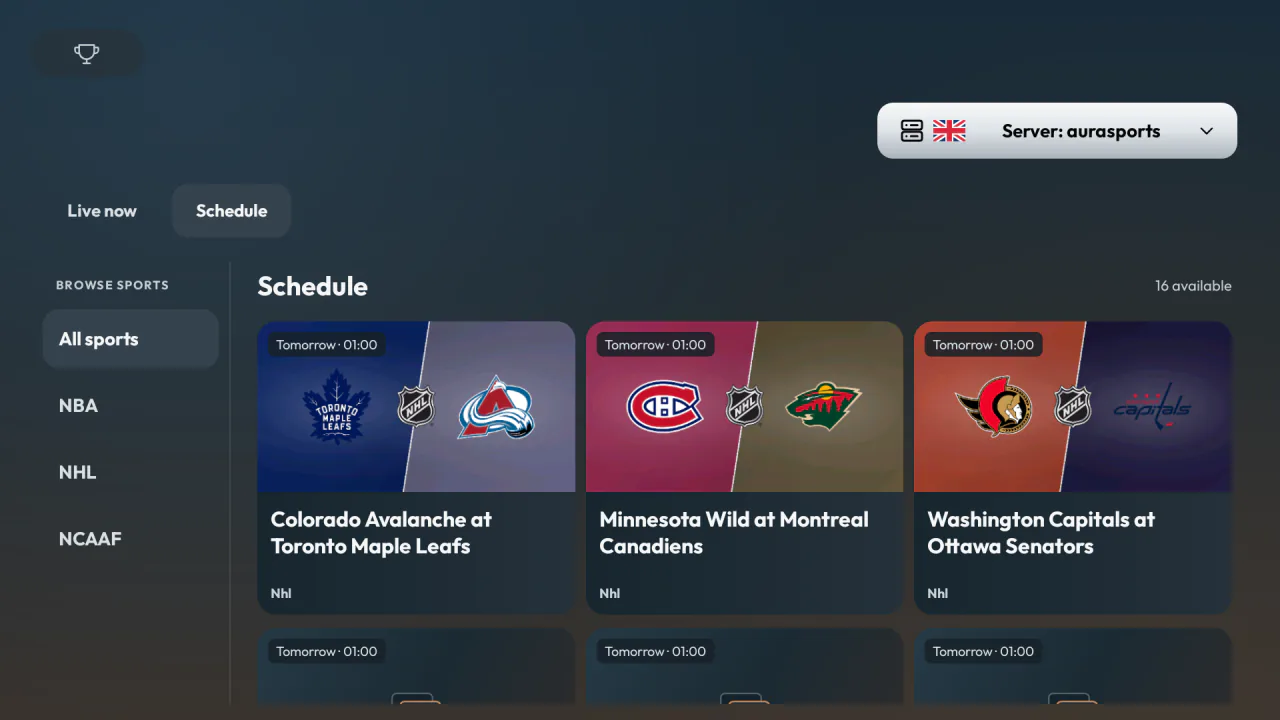
See which games are live or check the next scheduled fixture. A different sports server can carry a different set of events.
Find an upcoming game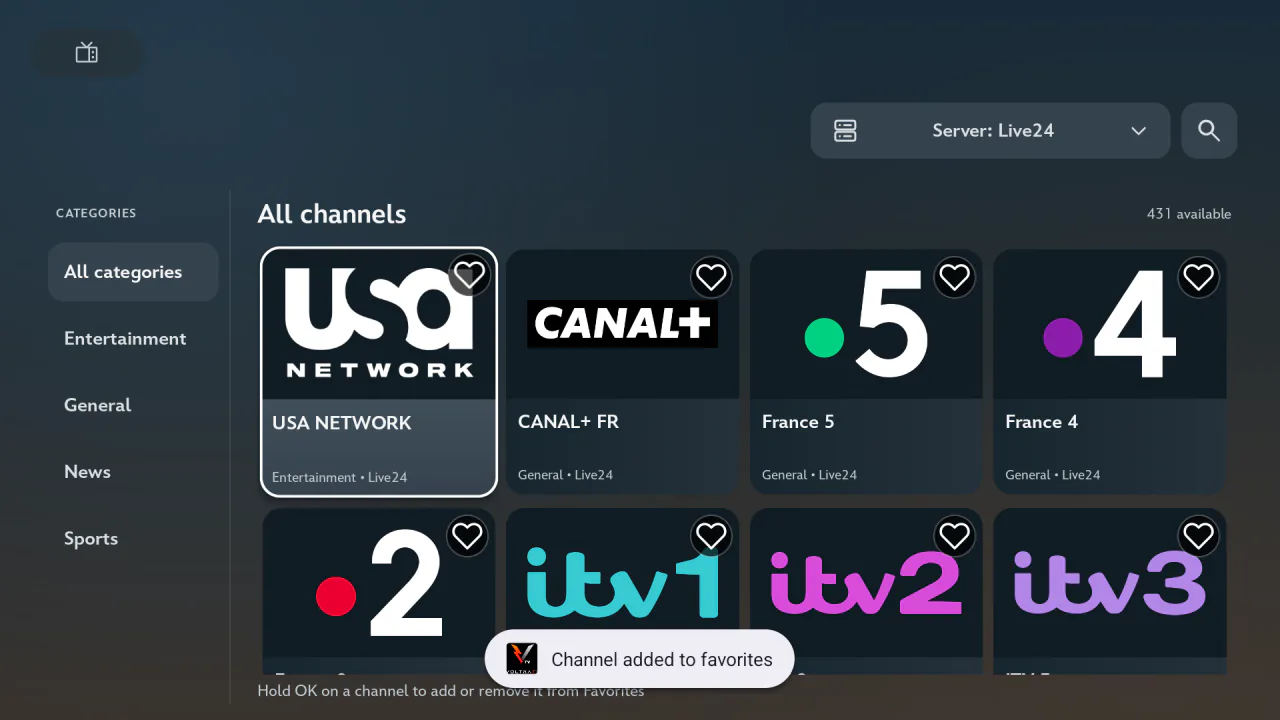
Search the channel list for the selected server. Mark a station as a favorite to return to it from My List.
Search the channel guideMy List keeps titles you choose to save. Continue Watching uses playback progress stored on this device.
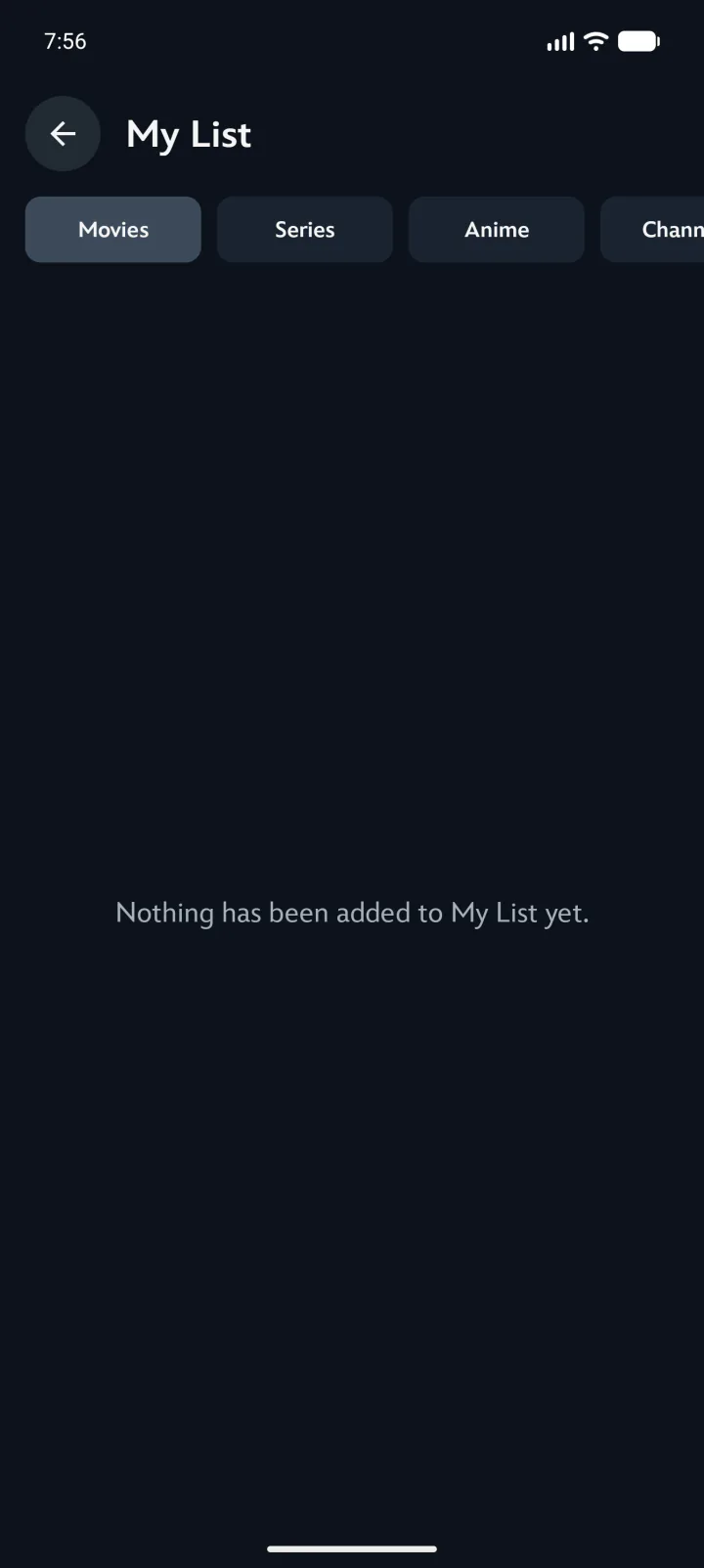
Use the Movies, Series, Anime and Channels tabs to retrieve favorites. Saving a series keeps its details page within reach even before you start watching.
Manage favorites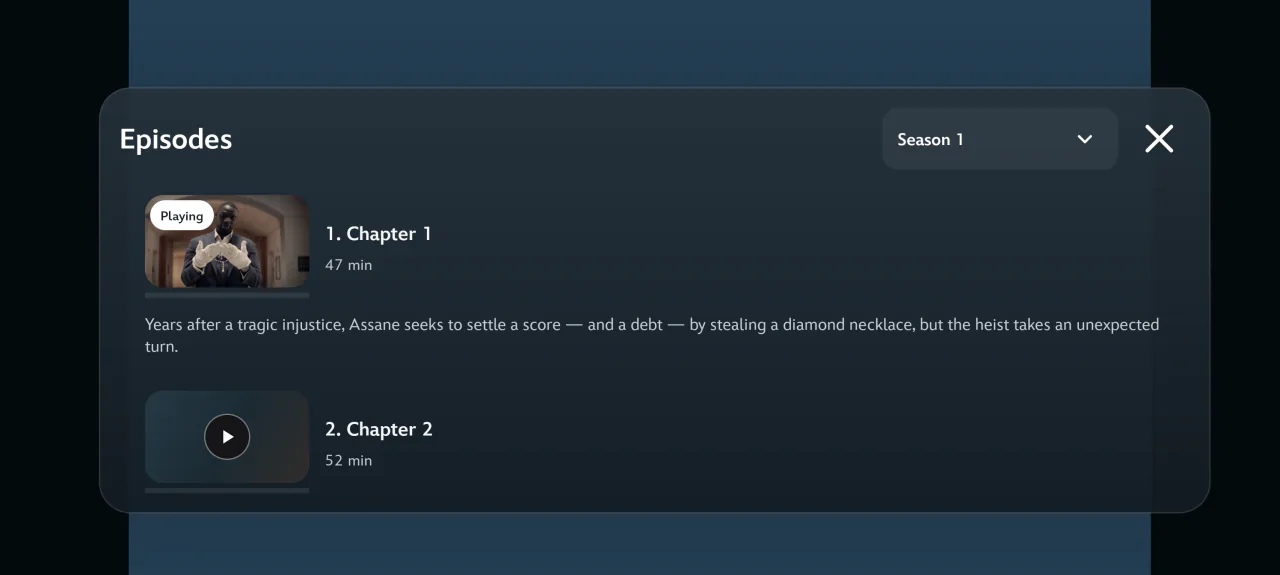
Open Episodes inside the player to change seasons or pick a specific episode. From series details, episode progress helps you find your place.
Use the episode pickerThe built-in player shows the options supplied for the stream you opened.
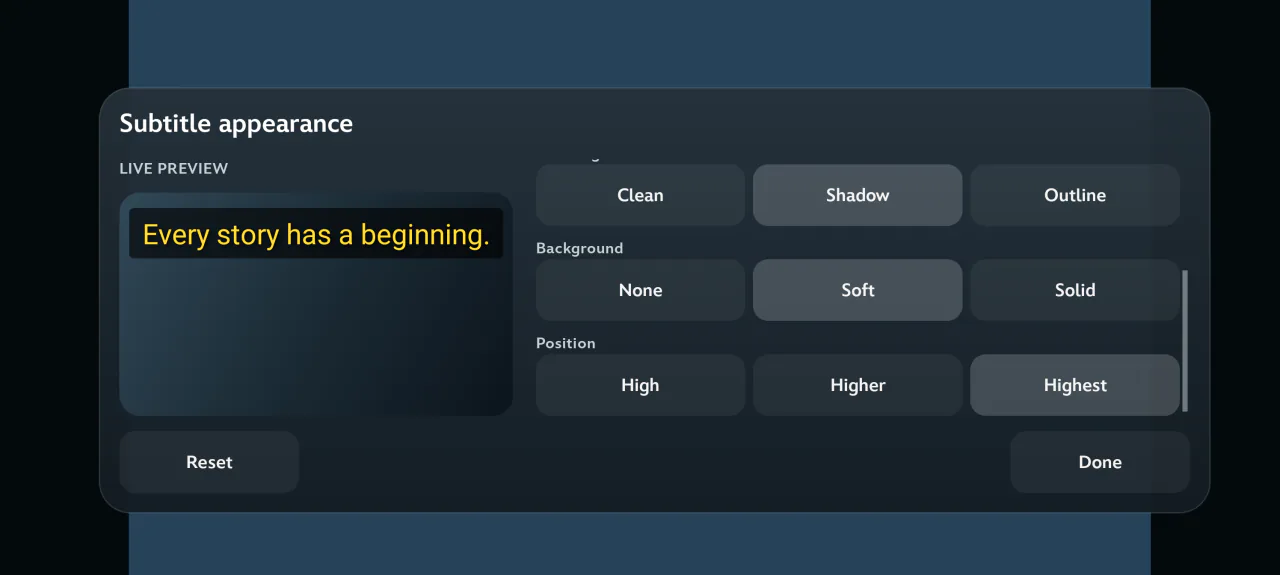
Choose a subtitle track, then adjust text size, outline, background and position. The preview lets you check readability before returning to the picture.
Customize subtitles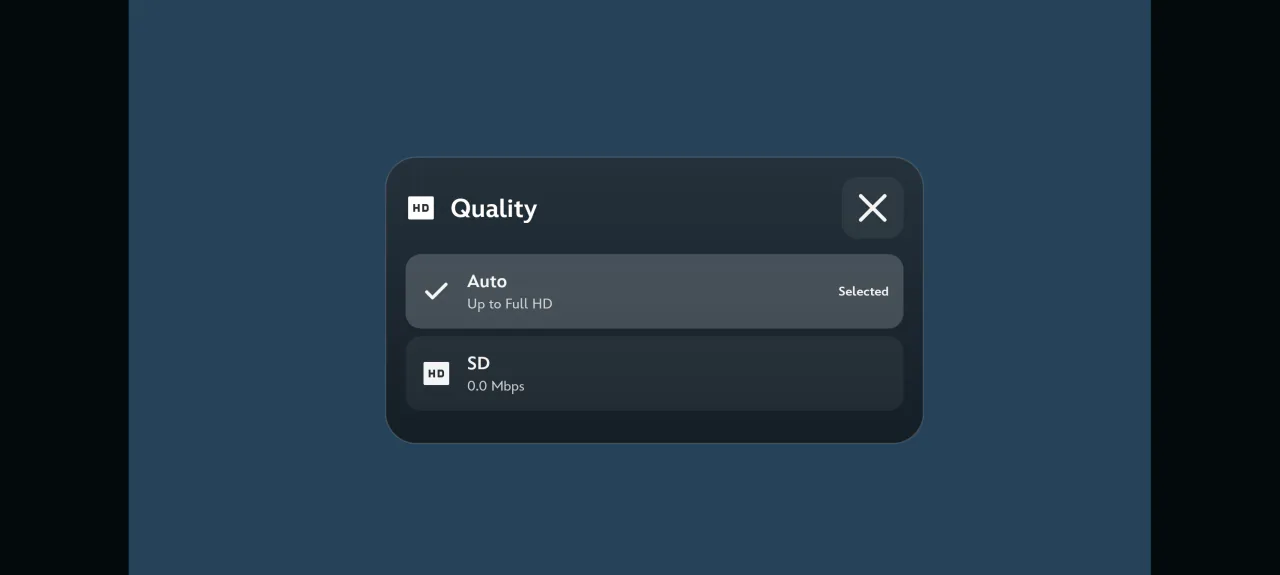
Choose Auto or one of the resolutions the source offers. Qualities above 1080p in the built-in player require paid Premium and compatible content and hardware.
Understand quality optionsCheck connectivity first. If the connection works and only one title stalls, try another source in the player.