
Find your place on Home
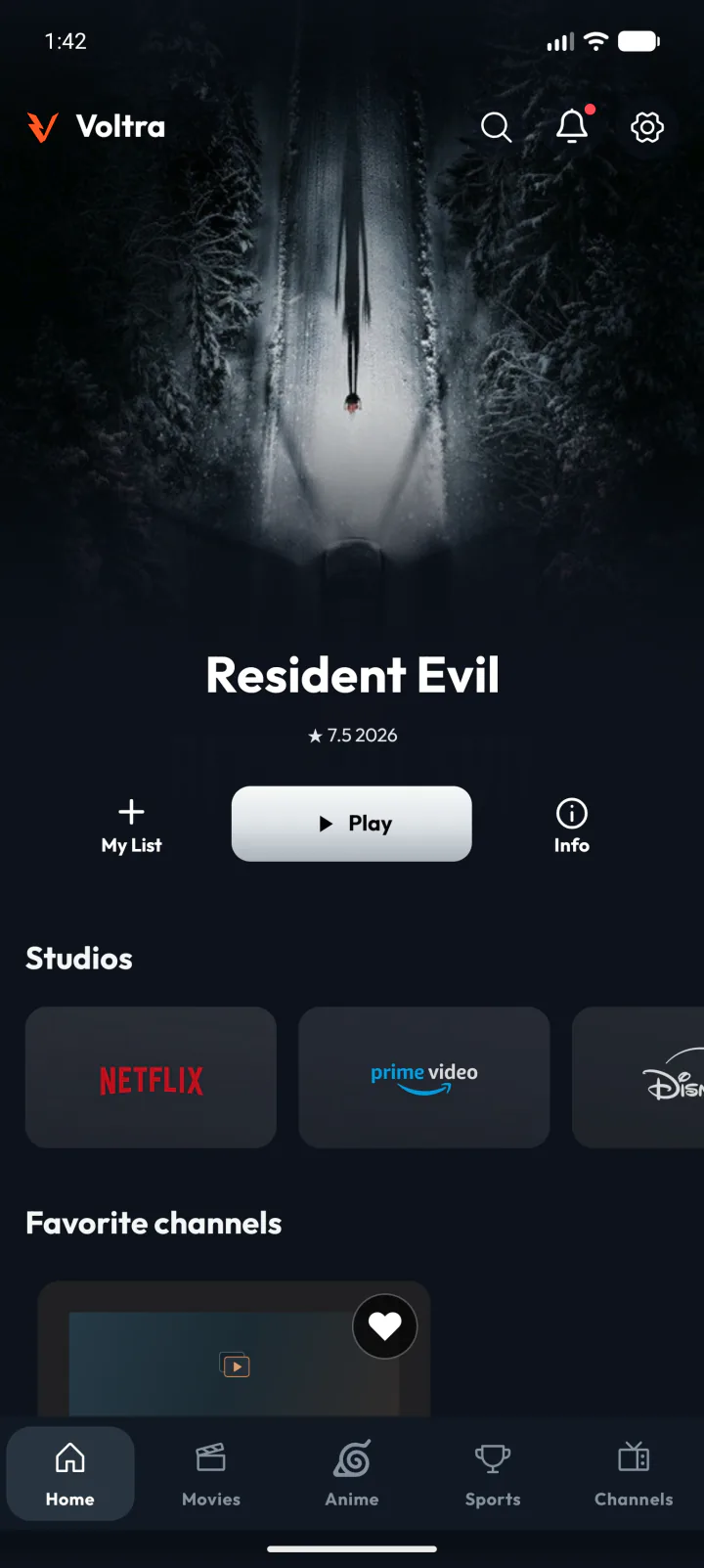
Return to Home and find the Continue Watching rows for movies, series and anime. A row appears when there is an unfinished title of that type. Series cards show the season and episode, anime cards show the episode number, and the progress bar and percentage tell you how far you watched.
Choose the card to open the title. For a movie, use the playback action on its details page. For a series, check the episode number. On mobile, the main action takes you to the episode list, where you can select the unfinished episode. If you need another season, open the season selector first.
Continue from the saved time or start again
When a saved position is available, the Continue watching? prompt shows the time where you stopped and the percentage watched. Choose Continue to return there. Choose Start over if you want to replay the opening scene. Two episodes of the same series can have different saved positions.
Why is a title missing?
In the built-in player, progress for an unfinished title starts counting toward history at 15 seconds. Opening a film, checking that it plays and immediately backing out may leave no Home card. Voltra marks a title complete when you reach 95% of its duration or get within the last minute. Completed items leave the unfinished rows.
Home shows recent unfinished titles, with one entry per series or anime. An older episode can still have saved progress even when another episode represents the show on Home. For an ongoing live broadcast, there is no fixed movie or episode timeline to resume.
Remove a card from the row
Use the card’s Remove action or long-press the card. This hides the title from Continue Watching while preserving its own playback progress. Watching it again can bring it back. To keep a title available independently of where you stopped, save it to My List from its details page.