Start from a studio or service
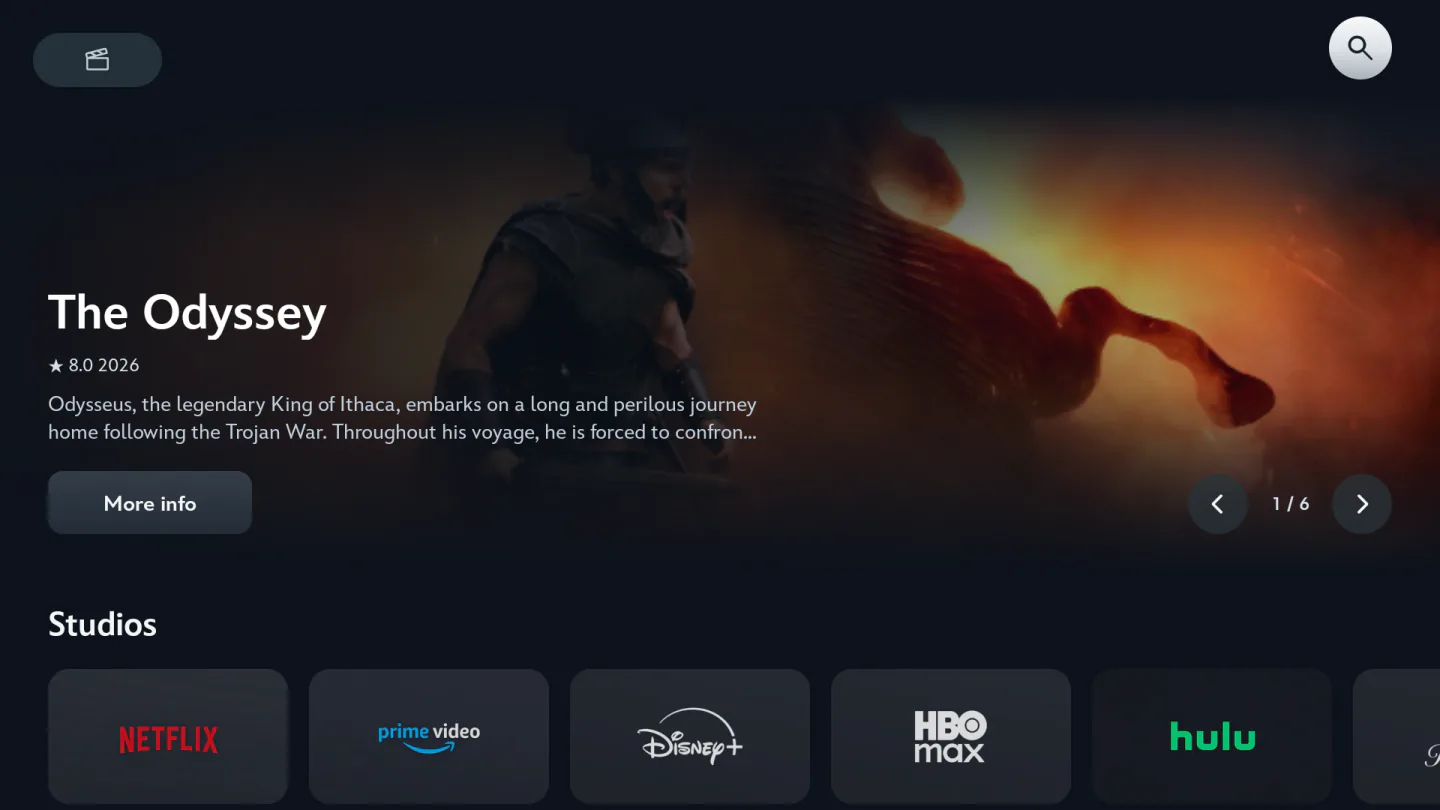
Open Home or Movies, find the Studios row and select a logo. A newly opened studio starts on Movies. Select Series for that studio’s television titles. On TV, move down from the selected tab into the cards. On mobile, tap the tab and scroll the grid.
Voltra requests each catalog in popularity order. More cards load as you approach the end of the grid. If you’re browsing a large catalog alphabetically in your head, it can be quicker to go back and use title search. Open a card to see its details, or use My List to keep it for later.
Why a familiar title can be missing
The Studios row includes both production companies and streaming services. Voltra uses TMDB catalog information for these listings. A service’s selection can depend on the region used for the lookup, and a show can be associated with a different company from the name you remember seeing on screen.
Search for the title directly
Open the magnifying glass in Movies. Enter the title, then use the movie or series filter to match the format you want. If a film and a television adaptation have the same name, keep your search text and change the filter. Open the matching result and check the year or episode information before choosing playback.
If one studio tab says no titles are available, try its other tab or look up the title in Movies search. If the app says it couldn’t load the studio, use the retry control. A failure partway down a populated grid has its own retry option, so you can keep the titles already on screen. Once you find the title, playback still depends on a source being available for it.