
Choose the track for this title
- During playback, show the controls and open Subtitles. On a phone or tablet, tap the video to reveal the controls. On TV, reveal them with the remote and press Select on the subtitles icon.
- Open Current server first. This shows subtitle tracks supplied with this particular stream. If the language you want is missing, open another subtitle server listed for the title.
- Choose the language track itself. A server name opens its list of tracks. To stop showing captions, choose Off in the track list.
Let a spoken line play after selecting a track. Silence during an opening logo is a poor test. If you see “No subtitles were found,” that provider has no match for this title. If a track fails to load, try another listed subtitle server while keeping the same video playing.
Make captions easier to read
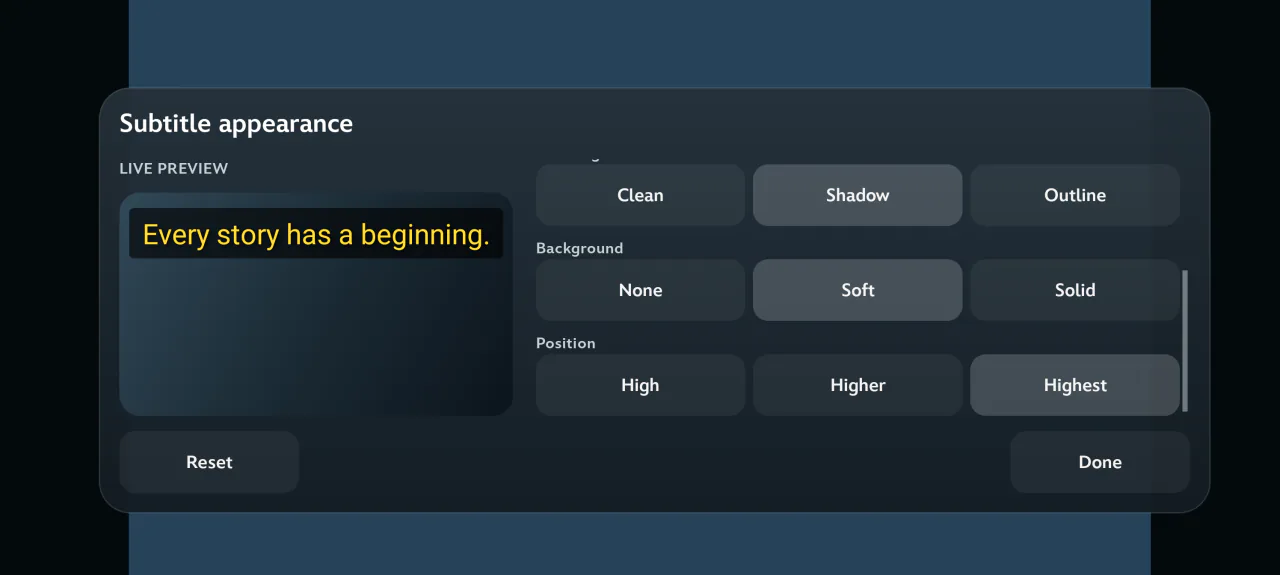
Open the gear in the player controls, labeled Appearance on mobile. The preview lets you see a sample even when the current scene has no dialogue. Increase Text size until you can read a full line from your seat. On a TV, focus the size slider and use Left or Right.
For white lettering against a bright picture, try Outline or switch the background from None to Soft. Solid gives the lettering more separation from busy scenes. Change Position if captions cover something important near the bottom of the picture. Use Reset to restore the defaults.
Set the language for future sessions
Open Voltra’s Settings and choose Subtitle language. The Movie & series subtitles and Anime subtitles settings let you choose a provider for each catalog. A preferred language still needs a matching track for the title and episode. If you change video servers, check the track list again because each stream can carry different captions.