
Open the server list
- Show the controls and open Server. Use the directional buttons and Select on a TV, or tap the control in the landscape mobile player.
- For a movie or series, choose the main provider. This opens its subservers, the individual choices that can supply the video. Opening a provider lets you inspect the list before committing to a change.
- Choose a different subserver. Look for the entry marked Playing to identify your current stream. A previously unsuccessful choice may appear as Failed.
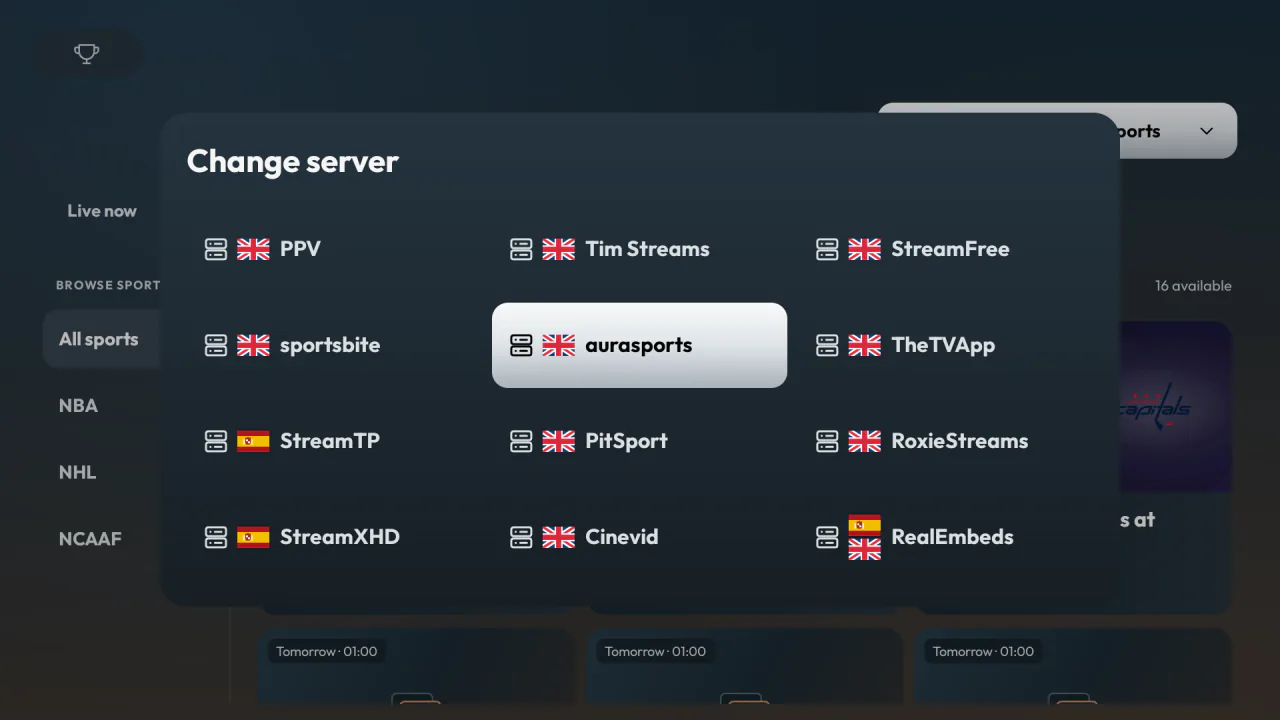
For a live event or channel, you may see a single list of stream choices instead. Those entries belong to the current broadcast. To look at another provider’s event schedule or channel lineup, return to Sports or Channels and use the server selector there.
What happens to the scene you are watching?
During a movie switch, the player shows Switching to… and the destination name. If the current video is healthy, it can keep playing while Voltra checks the replacement. Wait for the switch to finish before choosing another option. Once the replacement is ready, Voltra carries over the playback position and whether the video was paused.
If a subserver fails, Voltra can try another available one. When none succeeds and the original stream is healthy, playback stays on the original server. If nothing is playing, use Try again when the player offers it, or return to the list and choose another available provider. A catalog entry alone does not establish that a provider has the video.
Check the replacement
Play a few lines of dialogue. Different providers can supply different cuts, soundtracks and captions, so the same timestamp may land on a slightly different scene. Reopen Subtitles for the available tracks and Quality for the resolutions on the new stream.