Change the picture during playback
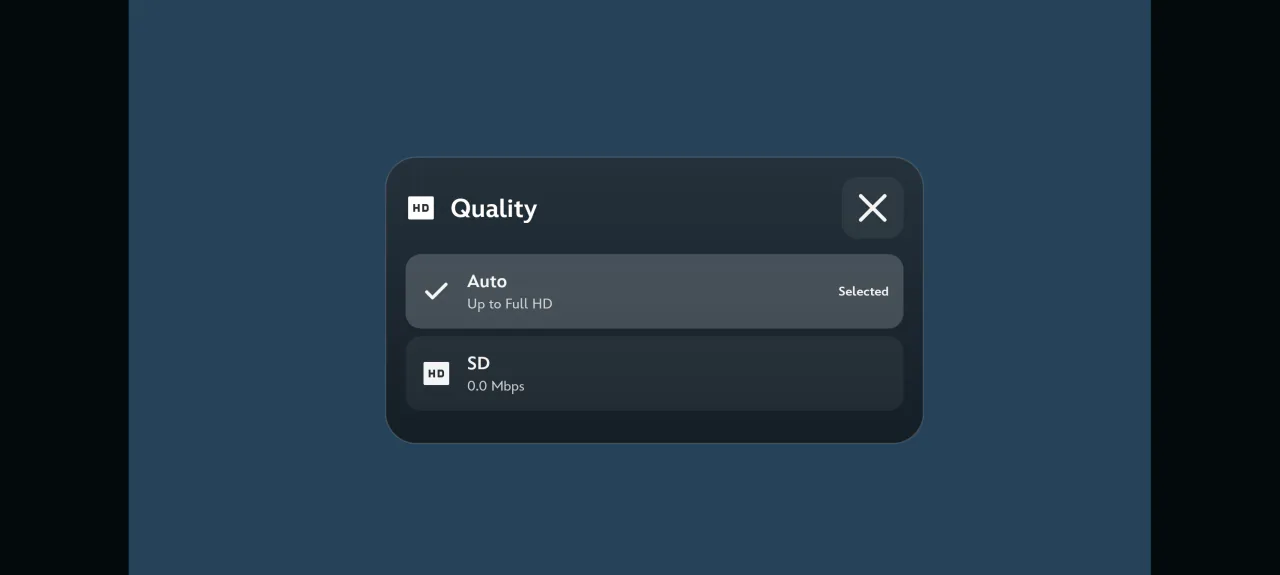
Open the controls in Voltra’s built-in player and choose Quality, marked with an HD icon. The menu reflects what the current server supplies for this movie, episode or live feed. Streams with adaptive video can show Auto alongside individual tracks. A server that delivers separate versions may show only those versions.
- Auto lets the player select among the available tracks as conditions change. Try this first if the connection varies while you watch.
- HD corresponds to 720p. Try it when Full HD keeps stopping to buffer.
- Full HD corresponds to 1080p. It is the upper limit for free and temporary access in the built-in player.
- 4K corresponds to 2160p. Qualities above 1080p, including 1440p where offered, require paid Voltra Premium.
Set a preference before the next video
From the main app, open Settings, then Preferred video quality. Choose Auto, HD, Full HD or 4K according to your access and device. This saves your starting preference. The Quality control inside the player lets you adjust the video you are watching without changing that saved setting.
When 4K is missing or a track will not play
A 4K television can play a movie whose source supplies only HD. Check the Quality list for that title, then try another available server if the resolution you want is missing. A provider name that mentions 4K is no guarantee that every video has a 4K track.
If a listed track is marked unsupported, choose a lower supported track on that device. On a memory-constrained TV, Auto can cap playback at 1080p to keep it running smoothly. These directions cover Voltra’s built-in player. A companion player may have its own quality menu and access rules.