The best way to stream movies on Android TV is not simply to stretch a phone app across a television. From the sofa, artwork must be readable, focus must be obvious and every important action should work with a directional remote.
Voltra is a browsing and playback interface for independent third-party sources. It does not host, upload or license movies. Title and stream availability can vary by source, device and country. Use only sources and content you are authorized to access.
Start with an Android TV interface built for distance
Android TV viewing happens several feet away from the screen. Voltra TV v9 uses large artwork, visible focus states and predictable left-right-up-down movement so you can browse without reaching for a mouse or touchscreen. Google likewise describes Android TV as a place where viewers browse shows and movies supplied by apps and content partners; the individual app still determines how easy that browsing feels.
On Voltra, the Movies section separates studio shortcuts, top-ten selections, current releases and broader discovery rows. The aim is to answer two different searches: “I know what I want” and “show me something worth watching.”
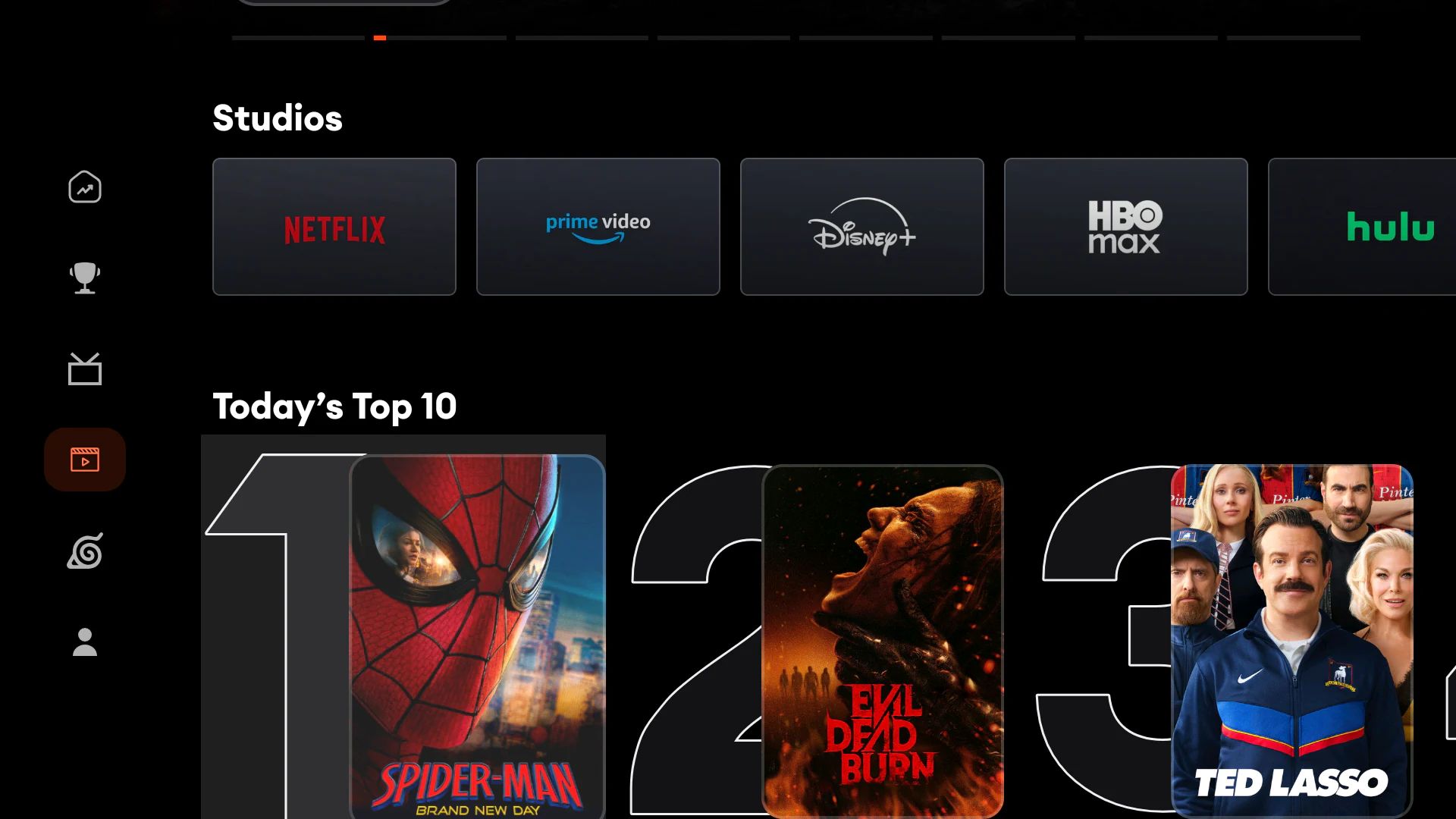
Browse the TMDB-powered movie catalogue
Voltra uses TMDB catalogue data to organize movie and series information such as artwork, titles, summaries and release context. That creates a broad discovery surface without claiming that every listed title has a playable source in every region. Catalogue presence and stream availability are separate questions.
If you already know the movie, use search rather than scrolling through rows. If you are exploring, start with a genre, studio or trending shelf and open the detail page before choosing a source. Keeping discovery and playback separate makes it clearer what you selected and where the stream comes from.
Use the player without leaving the sofa
Once playback begins, the Voltra TV player keeps the common controls on one surface: play or pause, ten-second seek, server choice, subtitles, audio, quality and episode navigation when the title is a series. Each control has a large target and a visible focus state for remote navigation.
If a stream buffers or fails, try another available source, reduce quality or confirm that the TV has a stable network connection. A faster interface cannot repair an unavailable third-party server, but it can make recovery less frustrating.
Move between mobile and TV deliberately
A phone is often better for quick search; a television is better for shared viewing. Voltra’s mobile and TV layouts use the same categories and visual language, so moving between them does not mean relearning the app. The mobile player also exposes casting when a compatible receiving device is available. Android’s official Cast guidance recommends keeping the phone and receiving device ready on the same supported setup.
Android TV movie-streaming checklist
- Install the official Voltra APK using the Voltra TV download guide.
- Use the Movies section for visual browsing and search when you know the title.
- Confirm the source is lawful and available in your location.
- Choose subtitles, audio and quality before settling in.
- Try another authorized source if one server is unavailable.
Is Voltra a movie provider?
No. Voltra is an aggregator interface. TMDB supplies catalogue metadata; independent sources determine whether playback is available. Voltra’s role is to make discovery and controls consistent across Android mobile and Android TV.